Install on any webstore
You also need the Unveild Shopify app. Follow Install on headless Shopify, which covers both.
Pick one of the options below: paste the script directly into your site header, or add it through Google Tag Manager or Adobe Launch. Use only one. The script tag itself will be provided by your Unveild POC. End-to-end, this should take about 3 minutes.
Option 1 — Install directly in the site header
-
Paste the Unveild script tag (provided by your Unveild POC) into the
<head>of every page.Example script tag (yours will have your own values):
<scriptasyncdeferid="sneakpeek-widget"data-customer-name="ABC"data-customer-id="DEF"src="https://sneakpeek-1.s3.us-east-1.amazonaws.com/sneakpeek-GHI.js"></script> -
Ensure the header script is present on every page in your sitemap.
Option 2 — Install via Google Tag Manager
-
Log in to your Google Tag Manager account.
-
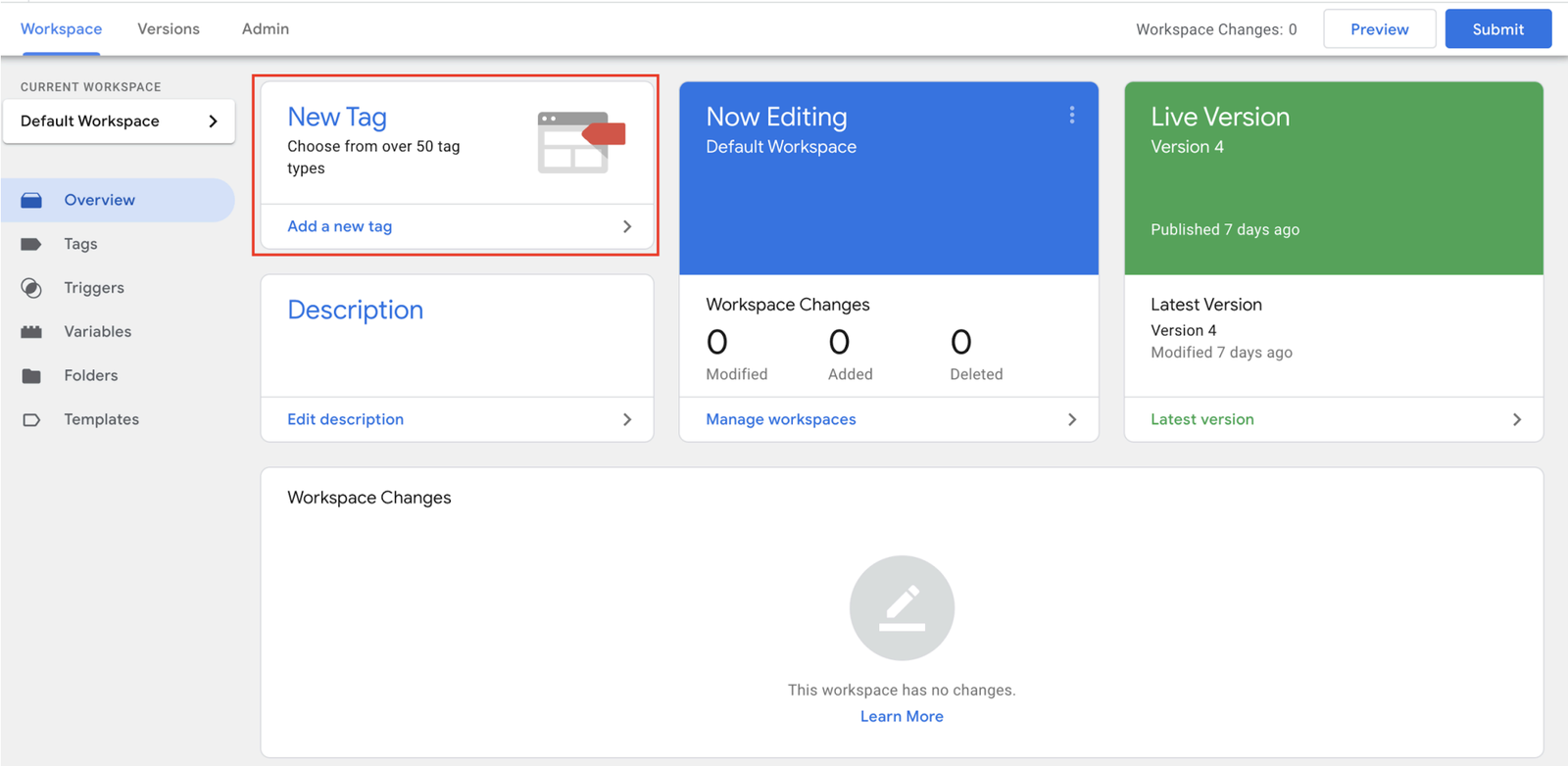
Click New Tag.
-
Name the tag
Unveild Pixel. -
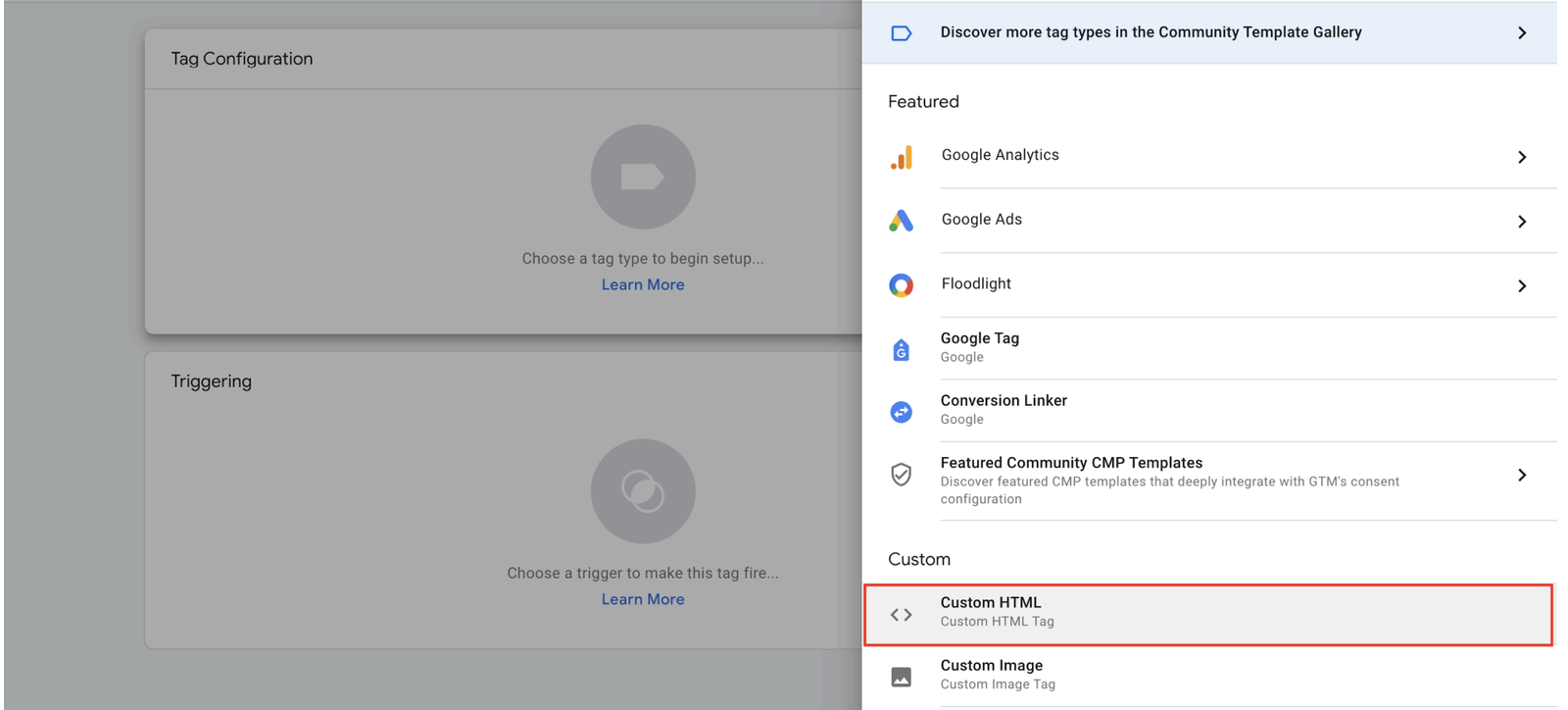
Click Tag Configuration and select Custom HTML.
-
Paste the Unveild script tag into the HTML input box.
-
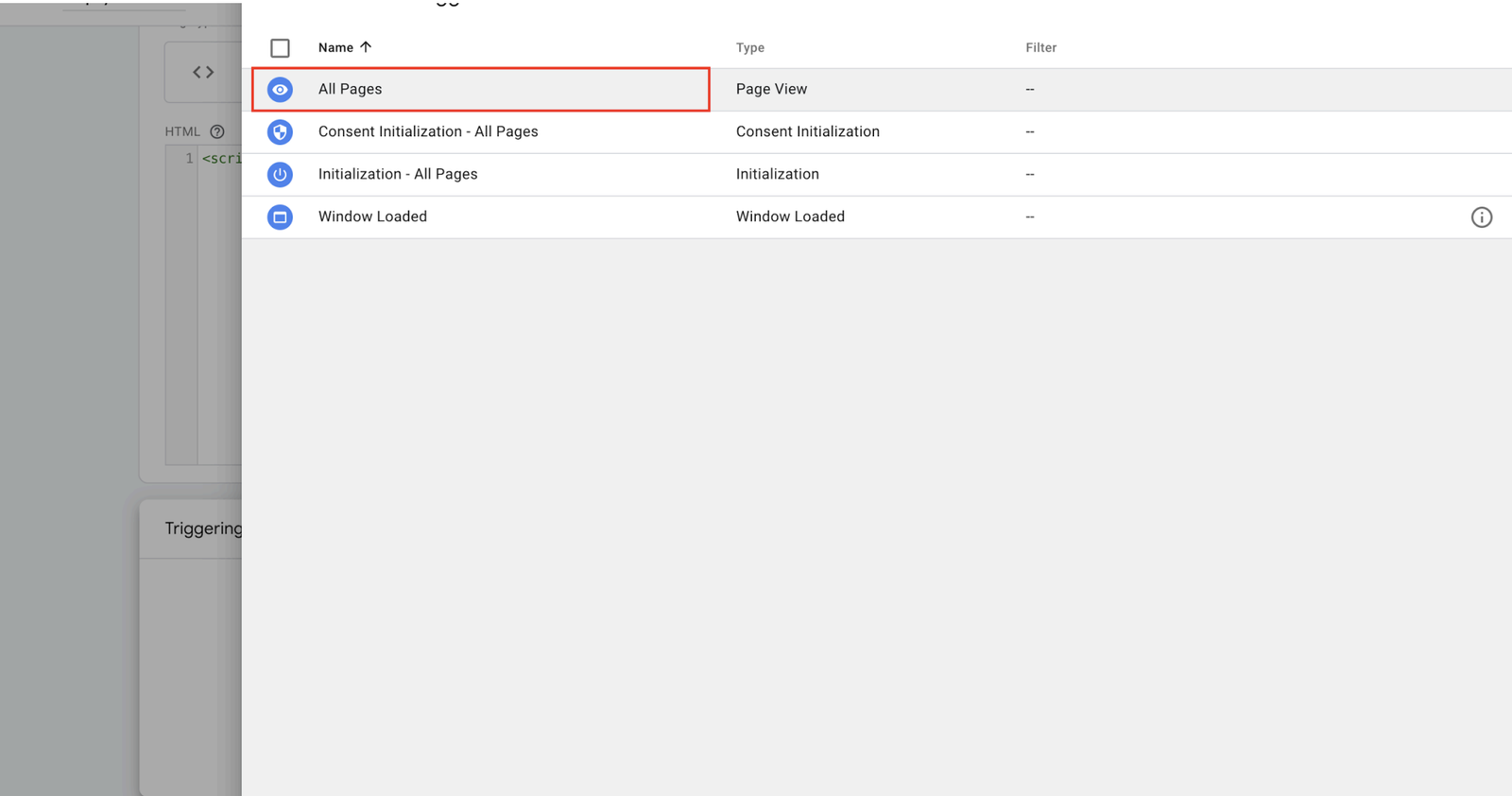
Scroll down to Triggering and select All Pages.
-
Click Save.
-
In the top-right of the GTM home page, click Submit.
-
Add a version name, then click Publish.
Option 3 — Install via Adobe Launch
Use this if your site runs Adobe Experience Platform Tags (Adobe Launch). Your Unveild POC will send you the code to paste, with your own values.
-
Log in to Adobe Experience Platform Data Collection.
-
Open your website's Tags property.
-
In the left panel, click Rules, then Create New Rule.
-
Name the rule
Unveild Pixel. -
Under Events, click Add and set:
- Extension: Core
- Event Type: Library Loaded (Page Top)
Click Keep Changes.
-
Under Actions, click Add and set:
- Extension: Core
- Action Type: Custom Code
- Language: JavaScript
-
Click Open Editor, paste the code your Unveild POC sent you, click Save, then Keep Changes. It looks like this:
(function () {if (document.getElementById('unveild-widget')) return;var s = document.createElement('script');s.id = 'unveild-widget';s.type = 'text/javascript';s.async = true;s.setAttribute('data-org-id', 'ABC');s.src = 'https://sneakpeek-1.s3.us-east-1.amazonaws.com/unveild-ABC.js';document.head.appendChild(s);})(); -
Click Save to save the rule.
-
Go to Publishing Flow, add the rule to a library, and build it through your usual Development → Staging → Production steps.
Open your site, open the browser console and confirm that Unveild: IIFE Script loaded appears. Then tell your Unveild POC: they'll confirm data is flowing within 24 hours.
If your storefront runs on Shopify, follow the Shopify install instead — it uses the Unveild Shopify app or theme.liquid.